

Forgetting Your iPhone Passcode: Solutions and Consequences


شارك على
 مسنجر
مسنجر
 واتساب
 ثريدز
ثريدز
 بريد إلكتروني
 الطباعة
شارك على


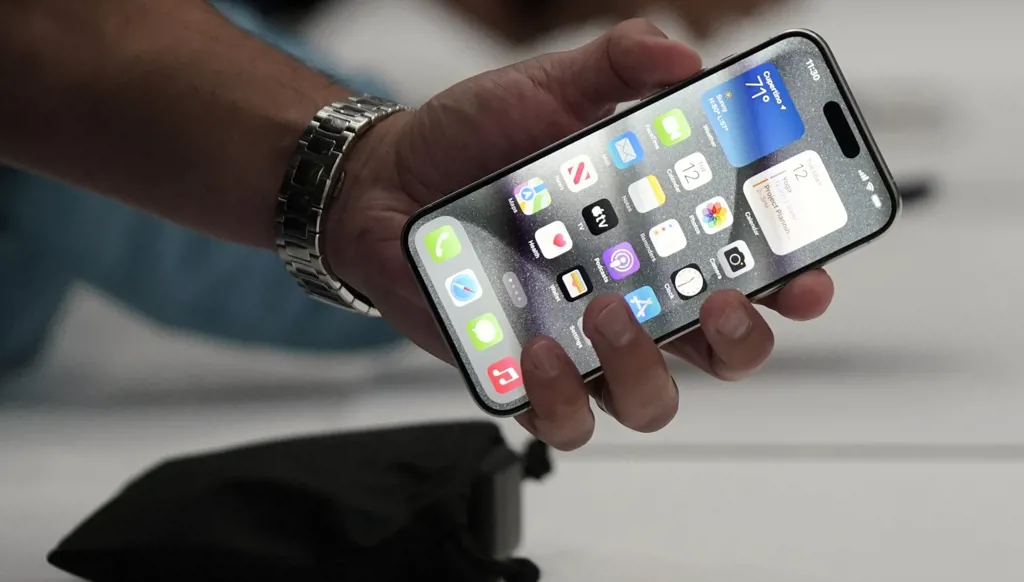


Every iPhone user might experience the momentary lapse of forgetting their passcode or frequently entering the wrong code until they receive the message "too many attempts to enter the code". When this happens, the phone locks completely, and the Face ID system becomes unusable after a reboot.
On iPhones running iOS 17 or newer, the only available option is to use the old passcode if done within 72 hours of changing it. Outside of this window, there are no direct solutions.
A report published by BGR indicates that the available solution is to activate the phone via Recovery Mode. This option addresses the issue and restores access to the device, but it results in erasing all stored data on the phone. Therefore, the report emphasizes the necessity of having a pre-existing backup, whether on a computer, external drive, or through Apple's iCloud service.
The report asserts that users can initiate the process if they are confident in their ability to recover their data later. This can be done either by connecting the phone to a computer or, on newer operating systems, by resetting directly from the phone itself. The report advises users who haven't faced this issue yet to ensure backup is enabled as a precautionary measure.
To regain access via a computer, the iPhone must be connected with a USB cable, using Apple Devices on Windows, Finder on Mac, or iTunes on older macOS systems. The button pressing method to enter Recovery Mode varies by phone model:
On iPhone 8 and later, press the volume up, then volume down button, followed by pressing and holding the side button.
On iPhone 7 and iPhone 7 Plus, press and hold the power button along with the volume down button.
On iPhone 6s, the first-generation iPhone SE, or older models, press and hold the home button along with the power button.
On iPhones running iOS 17 or newer, the process can be executed directly from the phone by repeatedly entering the passcode until the "iPhone unavailable" screen appears, then selecting "Forgot passcode?" and initiating the phone reset by entering the Apple account password, wiping the device, and restoring data from the backup.
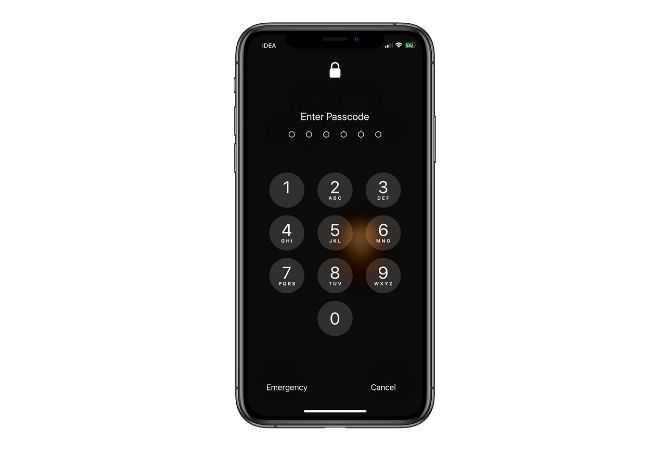
When using a computer, an option to "Update" the system might appear without deleting data. This option reinstalls the operating system, but may require retrying if it takes more than 15 minutes. If unsuccessful, the "Restore" option is used, which resets the phone to factory settings and erases all data, enabling it to be set up again and data restored from the available backup, with the possibility of missing the latest files if backups weren't regular.
Remembering the passcode is of utmost importance, hence it is advised to choose a code that is both secure and easy to remember, and to store it in a safe place, such as a secondary device in a special, hidden, password-protected folder. Forgetting the passcode is not a trivial matter and may result in data loss if no backup is available.

العلامات الدالة
الأكثر قراءة


إليكم أبرز الأخبار والتحليلات لليوم الأربعاء 10 حزيران/ يونيو 2026